
What Is Unibase AI Memory? A Complete Guide to One AI Memory Across ChatGPT, Claude, and Gemini
Deep dive into the Unibase Memory Chrome Extension.
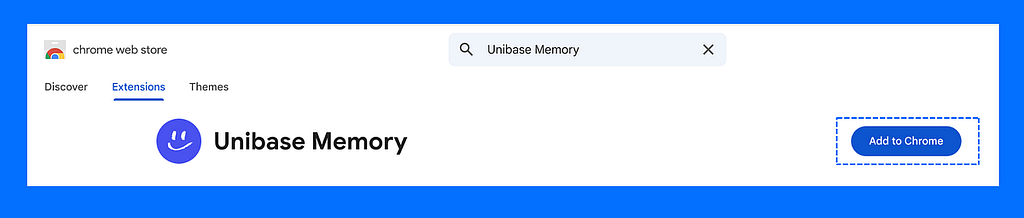
Unibase Memory turns scattered AI chats and useful web content into reusable memory across ChatGPT, Claude, and Gemini, all in one Chrome extension.
Import → Organize → Use → Account. Here's how it works:
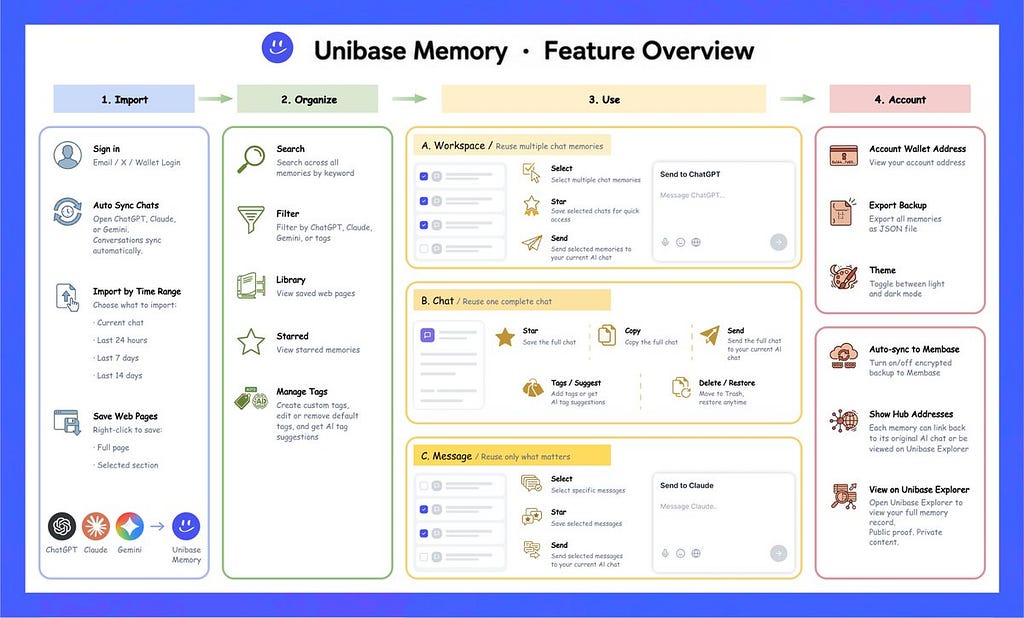
1. Import Memory
AI chats and web pages become memory. No more starting from zero.
- Sign In with email, Twitter or wallet.
 1. Sign in with Email, X, or Wallet | Unibase Memory Chrome Extension TutorialUnibaseWatch onYouTube
- Import AI chats from ChatGPT, Claude, and Gemini:
- Sync conversations automatically
- Or click "Import to Memory" to import by time range: current chat/last 24 hours/last 7 days/last 14 days
 2. Sync AI Chat Memory from ChatGPT, Claude & Gemini | Unibase Memory Chrome Extension TutorialUnibaseWatch onYouTube
- Import Valuable web content: Right-click to save a full webpage or selected text into Unibase Memory. Import once. Reuse anytime.

2. Organize Memory
Saved memory should not become another archive.
- Search what you need.
 4. Search AI Memory Across All Chats | Unibase Memory Chrome Extension TutorialUnibaseWatch onYouTube
- Star what matters.
 5. Star or Send Multiple AI Chats at Once | Unibase Memory Chrome Extension TutorialUnibaseWatch onYouTube
- Tag it your way.
 6. Manage Tag Categories & AI Suggestions | Unibase Memory Chrome Extension TutorialUnibaseWatch onYouTube
Find the right memory before starting your next AI chat.
3. Use Memory
Every task needs the right memory, not all of it.
- Pick the context that fits:
- Across Chats: choose memories from multiple conversations.
- Full Chat: choose one complete chat.
- Selected Messages: choose only the key messages you need.
- Star: save selected memories for quick access.
- Send: insert the selected memory directly into your current AI chat input box, ready to edit, submit, or continue.
Across Chats:
5. Star or Send Multiple AI Chats at Once | Unibase Memory Chrome Extension TutorialUnibaseWatch onYouTubeFull Chat:


 9. Send Full AI Chat to Your Input Box | Unibase Memory Chrome Extension TutorialUnibaseWatch onYouTube
 11. Delete & Restore AI Chat Memory | Unibase Memory Chrome Extension TutorialUnibaseWatch onYouTube
Selected Messages:
 10. Select & Send Specific Messages in an AI Chat | Unibase Memory Chrome Extension TutorialUnibaseWatch onYouTube
Pick what your current AI chat needs. Send it in one click.
4. Own & Verify Memory
Unibase Memory is not just a local chat organizer. Your memories follow a privacy-first pipeline: Capture in browser → encrypt locally → sync to Membase
Memory content is encrypted before sync. Unibase only stores ciphertext.
- Local Backup Export all memories as a JSON file

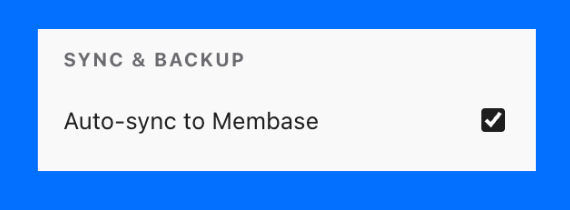
- Encrypted Sync to Membase and Verify it On-chain
- Turn sync on or off anytime
- Open Unibase Explorer to verify that the memory exists and belongs to your account, while the content stays encrypted and readable only by you
 14. View AI Memory on Unibase Explorer | Unibase Memory Chrome Extension TutorialUnibaseWatch onYouTube
- Show Hub Addresses When enabled, each synced memory exposes additional
reference links
- On-chain record: opens the memory's entry in Unibase Explorer, showing its storage address and sync details.
- Source message: jumps to the original ChatGPT or Claude message the memory was captured from.
 13. Show Hub Addresses to View On-Chain AI Memory Details | Unibase Memory Chrome Extension TutorialUnibaseWatch onYouTube
5. Check the full step-to-step guide video below:

- 0:00 — Welcome
- 0:08 — Install Unibase Memory
- 0:13 — Sign in
- 0:19 — Import AI Chats
- 0:38 — Search Memory
- 0:42 — Save Web Content
- 0:57 — Select, Star, Send Multiple Chats
- 1:17 — Star, Copy, Send, Delete One Full Chat
- 1:57 — Manage Tags & AI Suggestion
- 2:26 — Export Memory
- 2:31 — Theme
- 2:36 — Show Hub Address
- 2:50 — View on Unibase Explorer
- 3:00 — Learn about Unibase Memory in our Website